Arkidor for Confluence — User Guide
How to create, embed, and manage ArchiMate® diagrams in Confluence Cloud
Key concepts
This guide uses a small set of words precisely — the same word always means the same thing:
- Page — an ordinary Confluence page.
- Model — one ArchiMate model: its elements, relationships, and one or more views. Each model is stored on a single page — its model page, whose title is marked with a 🧊 icon so you can spot it in the page tree and in search.
- View — one diagram inside a model. A model can hold many views.
- Macro — the Arkidor block you add to a page. The same macro is used in exactly two ways:
- Source macro — the macro on the model's own page. This is the one that maintains the model: it is where you open the editor and change the model's elements, relationships, and views.
- Reference macro — a macro on any other page. It shows one view that references the model. It only displays the diagram; it never changes the model. At the bottom it shows a Linked from model: name label that links back to the model page — the reference source.
So there are only two ways to use the macro: reference a model — to show one of its views on a page — or be the source that maintains the model. The rest of this guide is organised around those two uses.
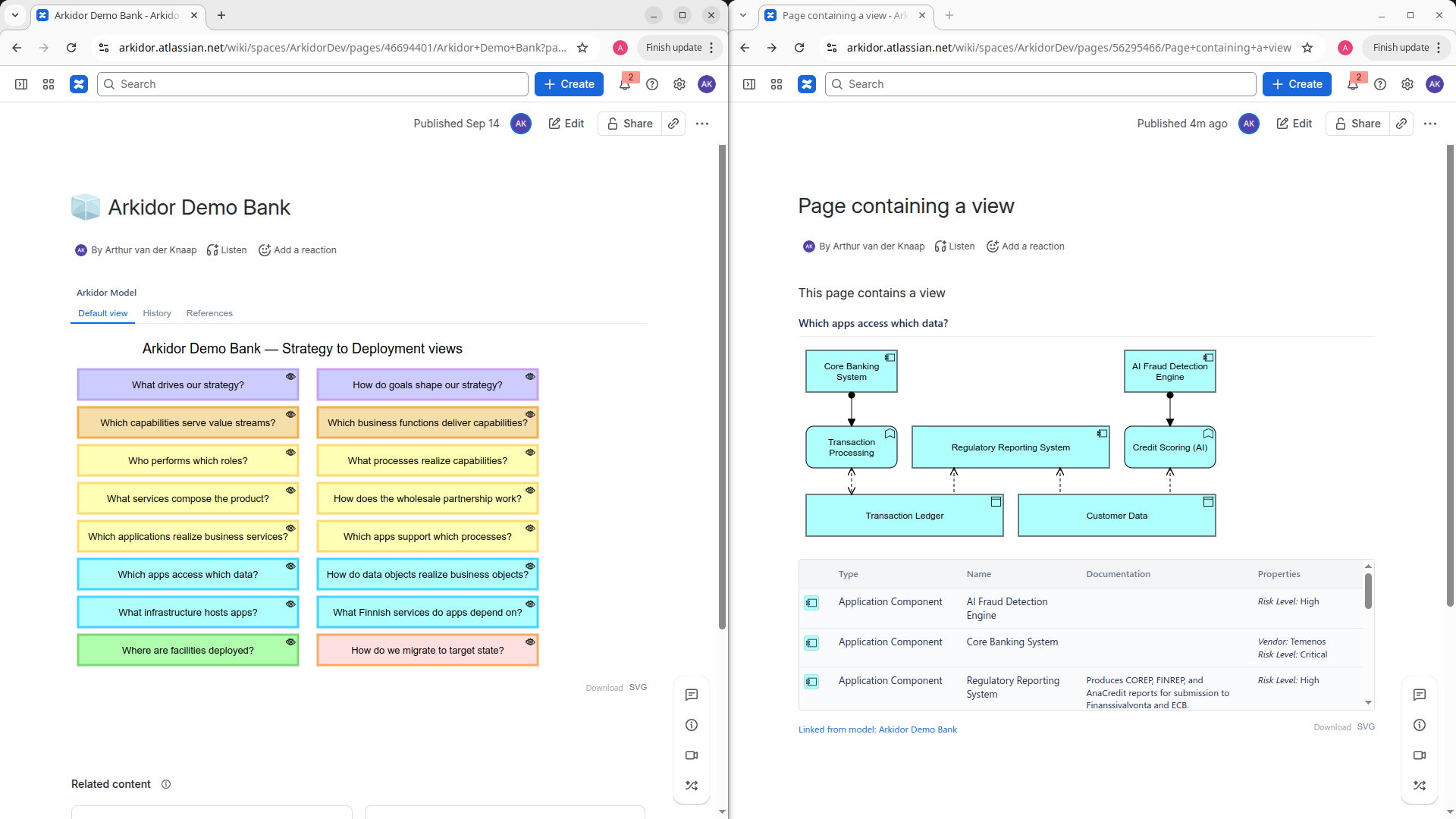
Insert a diagram on a page
This is the first of the macro's two uses: showing a view from an existing model on a page. The macro you add here is a reference macro.
- Edit the page where you want the diagram.
- Type
/arkidorand choose the Arkidor macro (or add it from the macro browser). - The macro's configuration panel opens on Select a Model.
- Find the model in the Search models… box, or pick it from the list.
- On Select View, choose the view to show. Your choice is written to the macro automatically — there is no Save button (see Choose which view to show).
- Close the configuration to place the diagram, then publish the page.
If no models exist yet, the panel shows "No models found in this instance." — use Create a new model to make your first one.
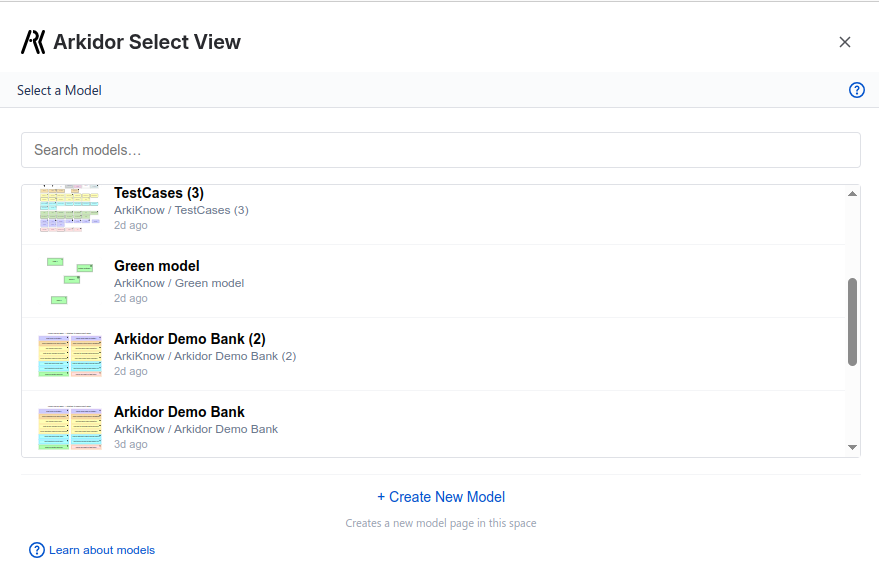
Create a new model
- In the model picker, select + Create New Model. The hint reads "Creates a new model page in this space."
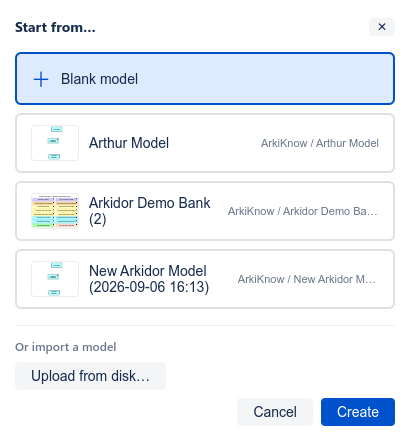
- The Start from… dialog opens. Choose one of:
- Blank model — start from an empty model.
- A template — if your space has templates, pick one to start from its contents.
- Upload from disk… — import an existing ArchiMate file (
.xmlor.archimate).
- Select Create.
- Arkidor creates a new model page in the current space, marks its title with the 🧊 icon, and opens the editor so you can start drawing.
Choose which view to show
When you configure a reference macro, the Select View step chooses which view of the model appears on the page. The embedded diagram always reflects the model's latest published version — the one the model's author has published for readers, not any work-in-progress draft (see Save and publish your changes).
- In the view list — or the folder tree, if the model groups its views into folders — select a view.
- The Preview on the right shows exactly how that view will look on the page.
- Adjust Display settings if you want.
There is no Save button on this step. Your view choice and display settings are written to the macro automatically as you change them, and they go live when you publish the Confluence page.
If the model has no views yet, you see "This model has no views yet. Open the editor to create views."
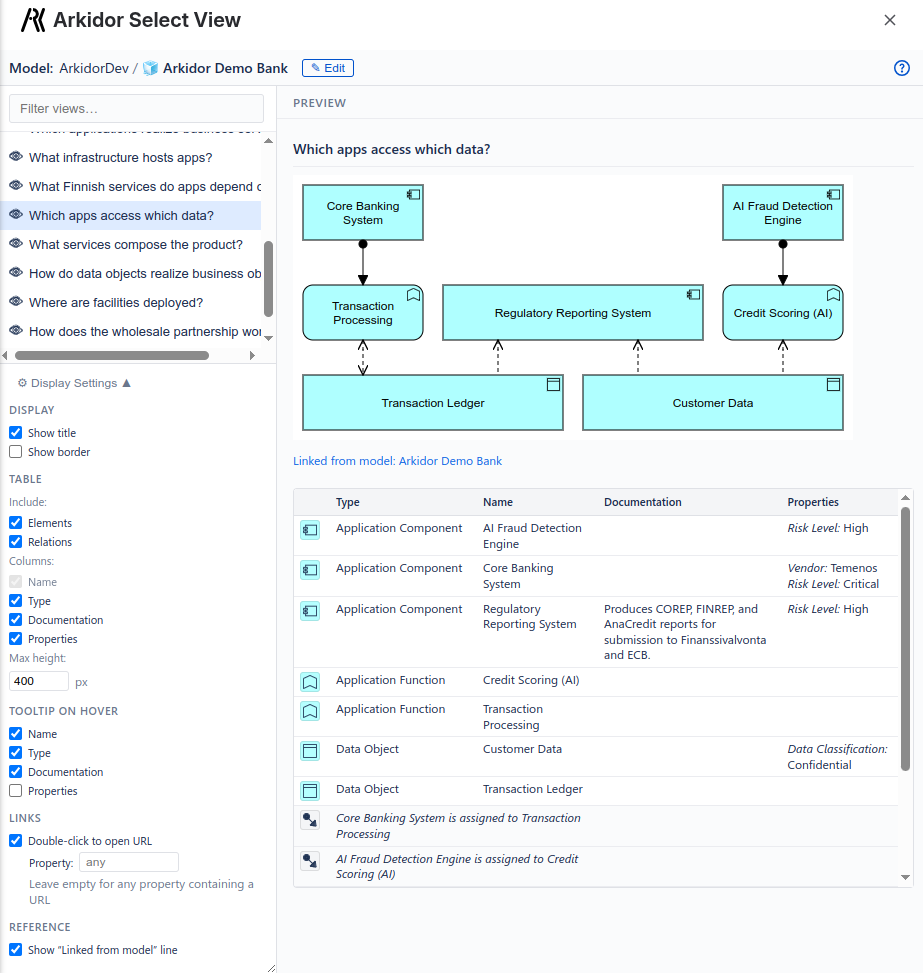
Display settings
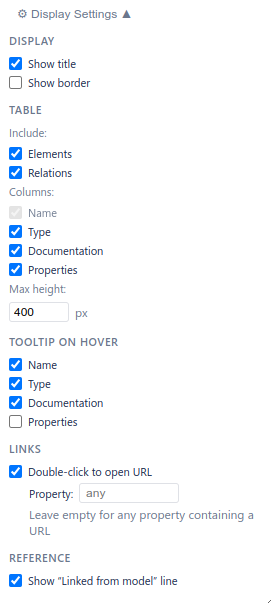
Open ⚙ Display Settings in the view picker to control how the diagram appears. Settings are grouped:
- Display — Show title, Show border.
- Table — show an Elements and/or Relations table below the diagram, choose which columns (Name, Type, Documentation, Properties), and set a Max height in pixels.
- Tooltip on hover — which fields appear when a reader hovers an element (Name, Type, Documentation, Properties).
- Links — Double-click to open URL, and optionally the property name to read the URL from.
- Reference — Show "Linked from model" line (the attribution label at the bottom of a reference macro that links back to the model page, the reference source).
Edit a model (maintain the model)
This is the macro's second use. You change a model only from its source macro — the macro on the model's own page.
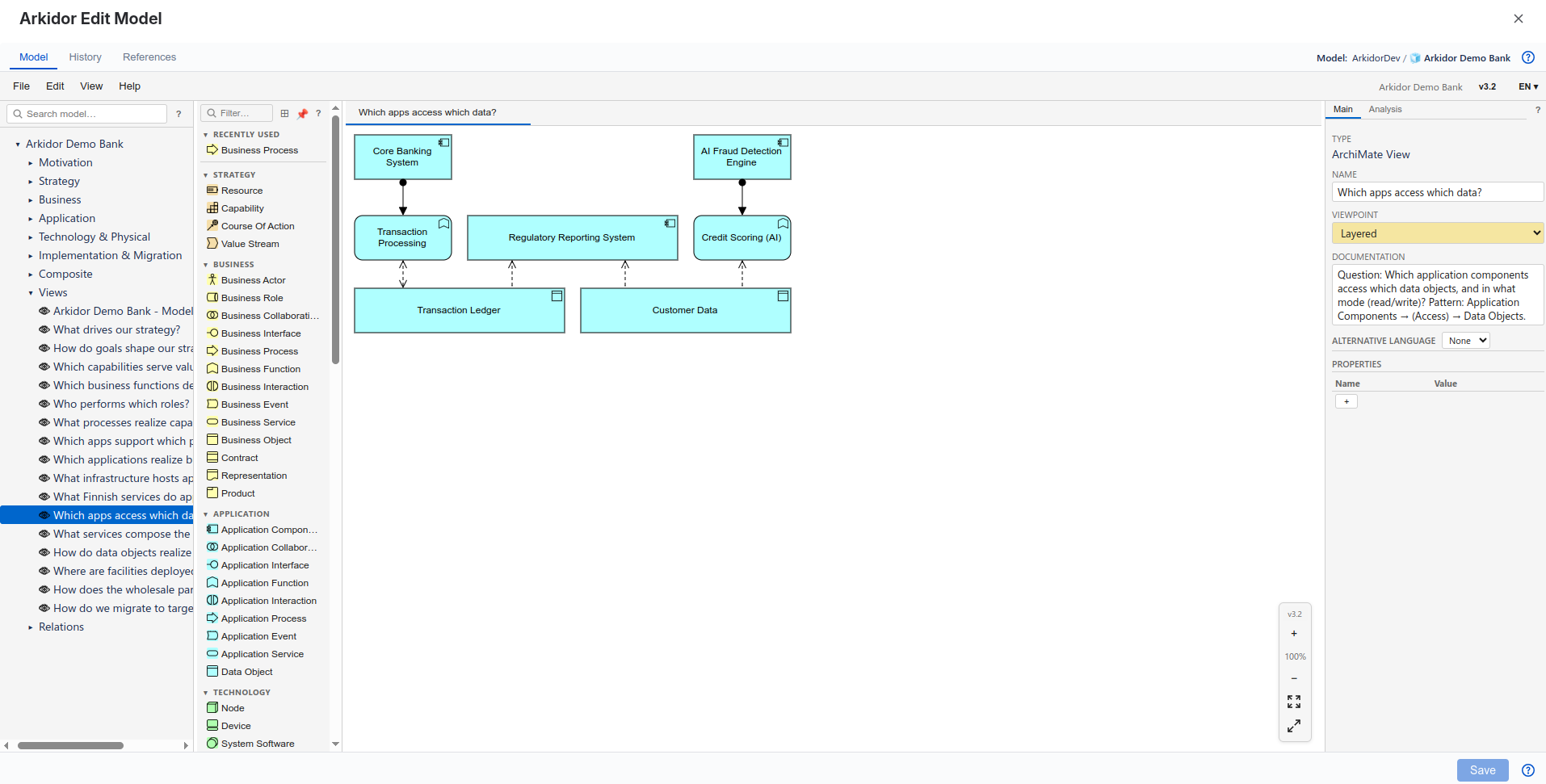
- Open the model page and double-click the diagram (or select the macro and open it). The full-screen editor opens.
- The editor shows the canvas, the navigator, the element palette, and the properties panel — alongside two more tabs, History and References.
- Draw and arrange elements, create relationships, and add or rename views — exactly as in the standalone Arkidor editor.
Shortcut from a diagram you're embedding. You can also open this editor straight from the Select View panel: select the ✎ Edit button next to the model name. It opens the editor already positioned on the view you had selected, so you land on exactly the right diagram — no need to find the model page first. Editing still changes the model's source (the same as opening it from the model page), and closing the editor returns you to the Select View panel. If you only have read access to the model, it opens in read-only mode.
The editor is the same one as the standalone Arkidor app, so its features are documented in the standalone user manual:
- The canvas — drawing, moving, and connecting elements
- The palette — adding elements and relationships
- The navigator — browsing the model tree and views
- The properties panel — editing names, documentation, and appearance
- Viewpoints and specializations
- Model validation and connection routing & appearance
Why did my connection straighten? When you move or resize an element in the editor, Arkidor checks each connection attached to it:
- Kept or reset. A small move keeps the bendpoints you drew. If the move breaks the straight end segment (the part of the connection that leaves the element), Arkidor resets the whole route and draws the connection straight again.
- Spread along the side. New connections and straightened connections are spread evenly along the side of the element.
- Keep the route. Select both elements of a connection before you move them. The route then moves along with them.
- Undo. Press Ctrl+Z (⌘+Z on a Mac) once to bring the element and every reset route back.
- The message "Routing of N connection(s) was reset. Press Ctrl+Z to undo." tells you that N connections lost a route with two or more bendpoints in that move. Undo still works after the message has gone.
- Bendpoints inside an element. If a model stores a bendpoint inside the start or end element of a connection, Arkidor now draws it as a right-angle corner just outside the element — in the editor, in the page preview and in exports. The stored model does not change.
See “Why did my connection straighten?” under Connection Routing & Appearance in the user manual for the full rules. Routes are only reset when you edit; opening or publishing a model never resets them.
Save and publish your changes
The model editor — opened from a model's source macro — has two distinct buttons in the action bar at the bottom, alongside the Help icon:
- Save stores your work as a private draft. It does not change what readers see on the page. Use it freely to checkpoint work in progress. Ctrl/Cmd+S also saves the draft.
- Publish promotes your draft to the published model that readers see, and regenerates the preview images for every view your changes affected — so the diagrams shown by reference macros update on their pages. If you have unsaved changes, Publish saves them first, then publishes.
Publish is the primary button, on the right; Save sits to its left. This two-step model keeps your edits invisible to readers until you deliberately publish them.
The action bar shows the current state so you always know whether readers are seeing your latest work: "Unsaved changes" (edits not yet saved), "Draft saved — not published" (saved as a draft, but readers still see the last published version), or "Published" (readers see this version).
Discard a draft
Changed your mind about a draft? Open the ⋯ More actions menu in the action bar and choose Discard draft & revert to published…. This deletes every change you saved since your last publish and restores the version readers currently see. Arkidor asks you to confirm first, because it cannot be undone. (The action is only available once a model has been published at least once — there must be a published version to revert to.)
Version history
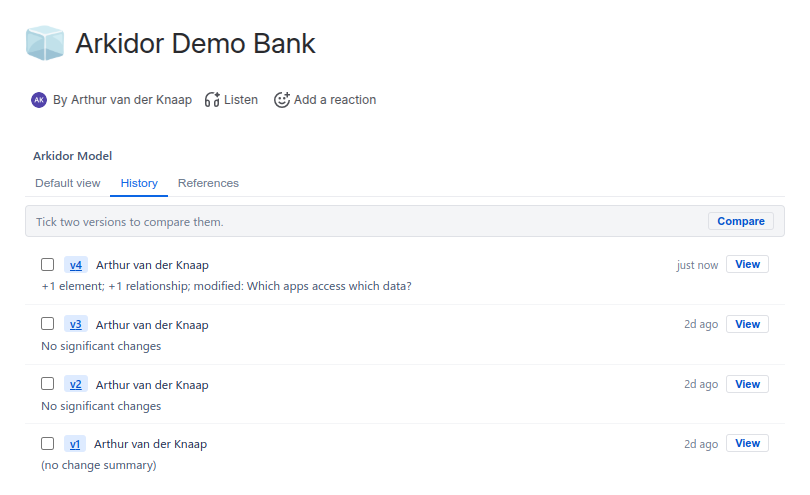
Every time you publish, that version is recorded. Open the History tab on the model's source macro (on the model page) to review it. (Draft saves are not listed here — only published versions are.)
- Each entry shows the version number, who published it, when, and a summary of what changed.
- Select View to open a past version in a read-only viewer (a banner shows "Viewing version N … read-only").
- Select a version number to download it as an ArchiMate file.
- Tick two versions and select Compare to see a summary of what changed between them — elements and relationships added or removed, views changed, and metadata updates.
References — where a model is used
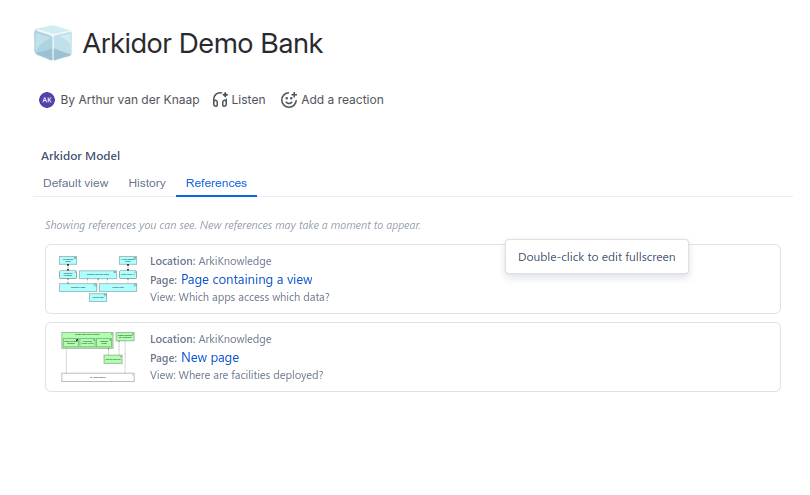
Open the References tab on the model's source macro to see which pages embed this model.
- Each entry links to a page that references the model, with the view it shows and a small preview.
- If the model is also a space template, a ◆ Used as a template in this space badge appears.
Read-only mode
Sometimes a model opens read-only. You can navigate and inspect it, but not change it. This happens when:
- You are viewing a past version from the History tab, or
- You don't have edit access to the model's source page.
A banner explains the state, for example: "Read-only — you don't have permission to edit this model. You can view and inspect it."
When someone else is editing
If another person is editing the same model, Arkidor shows a warning such as "This model is being edited by <name>." This is a heads-up, not a hard lock — coordinate with your colleague to avoid overwriting each other's work. If two people publish over one another, Arkidor warns before overwriting, and the superseded version stays available in the version history so nothing is lost.
Space defaults and templates (admins)
Space admins can set defaults and curate templates from the space's Arkidor settings screen. It has two tabs.
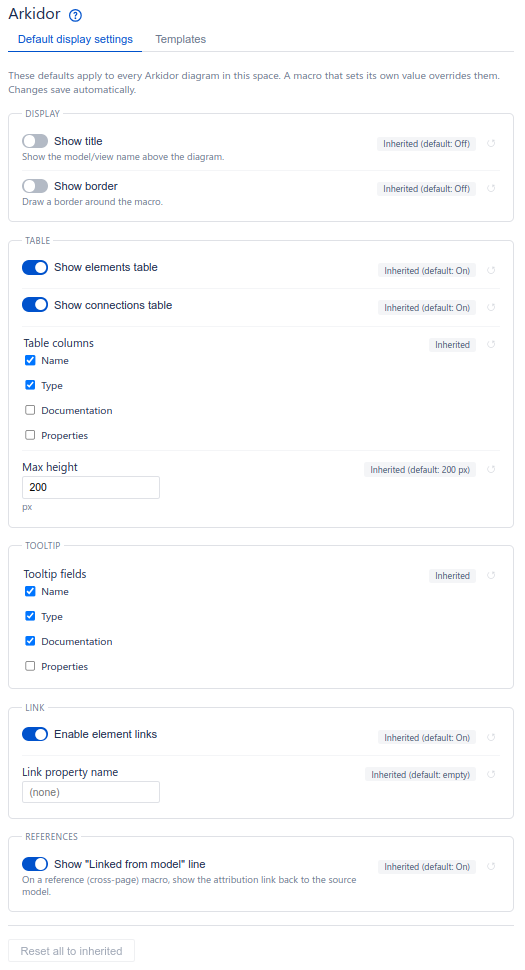
Default display settings
Set the default appearance for every Arkidor diagram in the space (title, border, tables, tooltips, links, and the reference attribution line). Each field shows whether it is Inherited or Overridden, with a reset (↺) control. Individual macros can still override these defaults.
- Select Save to store your changes (Ctrl/Cmd+S also works).
- Select Reset all to inherited to clear every override.
Templates
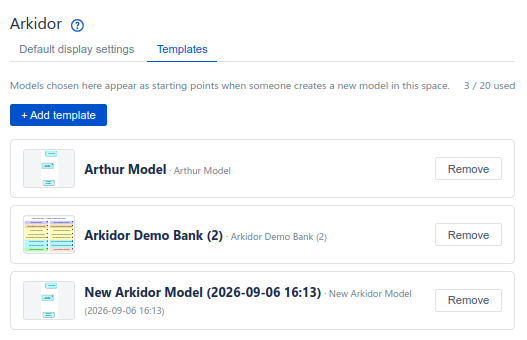
Curate models that appear as starting points in the Start from… dialog when someone creates a new model in the space.
- Select + Add template, then pick an existing model.
- Select Remove on a template to stop offering it (the model itself is not deleted).
- A space can hold up to 20 templates. The Templates tab shows a n / 20 used counter; when it reaches 20, remove a template before adding another ("Space template limit reached (20). Remove one to add another.").
Troubleshooting
- "Preview not available." → Open the model page, open the editor from its source macro, and Publish. Publishing regenerates the reader-facing previews for all affected views. (Saving alone only stores a draft — it does not refresh what readers see.)
- The diagram looks out of date → A banner reads "This preview may be outdated." Open the model (its source macro), open the editor, and Publish — publishing refreshes the affected reader previews. A saved-but-unpublished draft does not update them.
- "This model has no views yet." → Open the editor and create at least one view.
- "This model is no longer available — its source page appears to have been deleted or moved." → The page that stores this model can't be found. The message includes a clickable Expected location link pointing to where the model is expected to live — select it to open that page in Confluence, where you can see whether it was deleted, moved, or restricted. Ask the page owner to restore or re-share it, or remove this macro if the model is truly gone. (When a model is unavailable there is nothing to edit, so the editor shows this same message full screen instead of opening.)
- "Unable to load diagram preview. The source page may have been moved, deleted, or you may lack access." → Check that the model page still exists and that you have permission to view it; use the Expected location link to jump to it.
- "You don't have permission to create pages in this space." → Ask a space admin for page-creation rights, or create the model in another space.
- Can't edit a model → You may be in read-only mode because you lack edit access to the source page, or you're viewing a past version.
Getting help inside Confluence
Wherever you see the help icon in the Arkidor macro — in the editor's tab bar and Save and Publish action bar, the Select View picker, the History and References tabs, and the error banners — selecting it opens a short, context-aware help panel inside Confluence, showing the section of this guide that matches what you're doing. The button is icon-only (hover it for a "Help" tooltip), and you don't need to leave the page.